West Wood Troubleshooting Guide
Fix common issues and check server status.
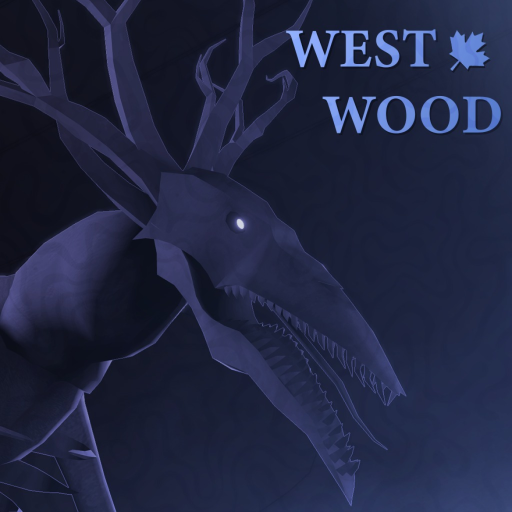
Troubleshooting West Wood issues requires distinguishing between Roblox platform problems, your local setup, and genuine game unavailability. This guide walks through diagnostic steps in the right order — starting with the fastest checks first.
Quick status checks
Before troubleshooting your own system, confirm the game is actually running:
Roblox Status Page
Check status.roblox.com for platform-wide outages. Roblox infrastructure issues affect all experiences including West Wood.
West Wood game page
Open the West Wood game page or Remake page. If the play button is greyed out or shows “Unavailable”, the issue is server-side, not your system.
Official Discord
The West Wood Group Discord (linked from Official Links) posts server status updates faster than the Roblox status page. Check the announcements channel for maintenance windows or outage notices.
Game not loading
Symptoms
- Roblox opens but West Wood stays on a loading screen.
- Error message: “This experience is currently unavailable.”
- Game launches but immediately crashes to desktop.
Diagnostic steps
- Restart Roblox — close completely and reopen the client.
- Clear Roblox cache — Roblox Settings → General → Clear Cache. This fixes stale asset issues.
- Update Roblox — ensure you are on the latest version.
- Check your internet — run a speed test. West Wood requires stable connectivity, not just high speed.
- Try a different server region — in Roblox settings, switch from Auto to a specific region closest to you.
If none work, the experience is likely down for all players.
Connection and latency issues
High ping in West Wood
West Wood is sensitive to latency because creature audio and position updates are real-time. High ping makes the creature appear to teleport and audio cues arrive late.
- Use wired internet — WiFi adds latency and packet jitter.
- Close background downloads — streaming, cloud saves, and updates compete with game packets.
- Select closer server — Roblox Settings → Graphics → Server Region.
- Check router QoS — ensure Roblox is prioritized over other devices.
Frequent disconnects
If you disconnect mid-session:
- Check Roblox Status for known outages.
- Verify your network is stable — one bad WiFi moment can trigger a disconnect.
- Check if the specific server is full — West Wood caps at 12 players.
- Confirm your account is not temporarily blocked for rule violations.
Crash issues
Game crashes to desktop
- Update graphics drivers — NVIDIA, AMD, or Intel drivers out of date cause crashes.
- Lower graphics settings — Roblox Settings → Graphics Quality → Auto or Manual reduction.
- Close overlay software — NVIDIA GeForce Experience, AMD Adrenalin, and Discord overlays can conflict.
- Run Roblox as administrator — right-click Roblox → Run as Administrator.
- Check for overheating — extended sessions on laptops can throttle performance.
Specific crash on certain actions
If crashes happen when:
- Opening the contract menu (G) — known bug reported in community threads; try restarting.
- Entering certain buildings — map asset may be corrupted; clear cache.
- Night transition — graphics load spike at dusk; reduce quality before night.
Audio issues
No creature audio
Creature audio is a core survival mechanic — losing it changes gameplay fundamentally:
- Check Windows Sound settings — ensure system sounds are not muted.
- Verify Roblox audio is enabled in Roblox Settings → Audio.
- Try headset instead of speakers — speakers can cause audio reflection that masks directional cues.
Voice chat not working
See the Voice Chat Guide for detailed troubleshooting.
Account-specific issues
Cannot join specific server
Server capacity is 12 players. If full:
- Wait for players to leave.
- Try a different server from the server list.
- Use a Private Server for guaranteed access.
Badge progress not saving
Badges are awarded by Roblox servers, not stored locally:
- Confirm you met the badge conditions — check Badge Tracker.
- Ensure you were not disconnected before the award processed.
- Check the badge API did not have a momentary lag — rejoin the same session.
- If truly missing, submit a report through official channels — do not edit wiki with unverified claims.
Distinguishing game down vs your issue
Use this decision tree:
Can others join the same server?
  YES → Your connection issue. Run network diagnostics.
  NO → Check Roblox Status page.
    Green → West Wood servers are up for others.
    Red/Incident → Platform outage. Wait for Roblox.

Check West Wood Discord announcements.
  Outage notice → Server-side issue.
  No notice → Local troubleshooting.
What westwood.wiki cannot fix
This wiki is a fan resource, not Roblox support or West Wood Group support. We cannot:
- Reset your account or badges.
- Restore lost progress.
- Provide refund paths for private servers.
- Access developer-only server controls.
For account-specific issues, use Roblox Support.
Cross-links
Troubleshooting pairs with Voice Chat Guide for communication issues, Private Server for reliable access, and Remake Status for game availability context.
Frequently Asked Questions
Quick answers to the most common questions.
Game shows as unavailable — is it down for everyone?
Check Roblox Status (status.roblox.com) and the official Discord announcements. If both show no incidents, try restarting Roblox and clearing cache.
Why is my ping so high in West Wood specifically?
West Wood uses real-time audio and position updates sensitive to latency. Use wired internet, close background downloads, and select the closest server region.
My badges are not saving — what do I do?
Badges are awarded server-side. Ensure you were not disconnected before the award processed. Rejoin the same session. If genuinely missing after verified conditions, contact Roblox Support.
Can I get a refund for a private server if the game is down?
Private server refunds are handled by Roblox, not West Wood Group. Contact Roblox Support directly for billing issues.
Why does West Wood crash when I open the contract menu?
This is a known community-reported bug. Try restarting the game, clearing Roblox cache, or reducing graphics quality before opening the menu.